WhatsApp Secret Chat: How to Lock and Hide Chats Safely
What Is a Secret Chat on WhatsApp?
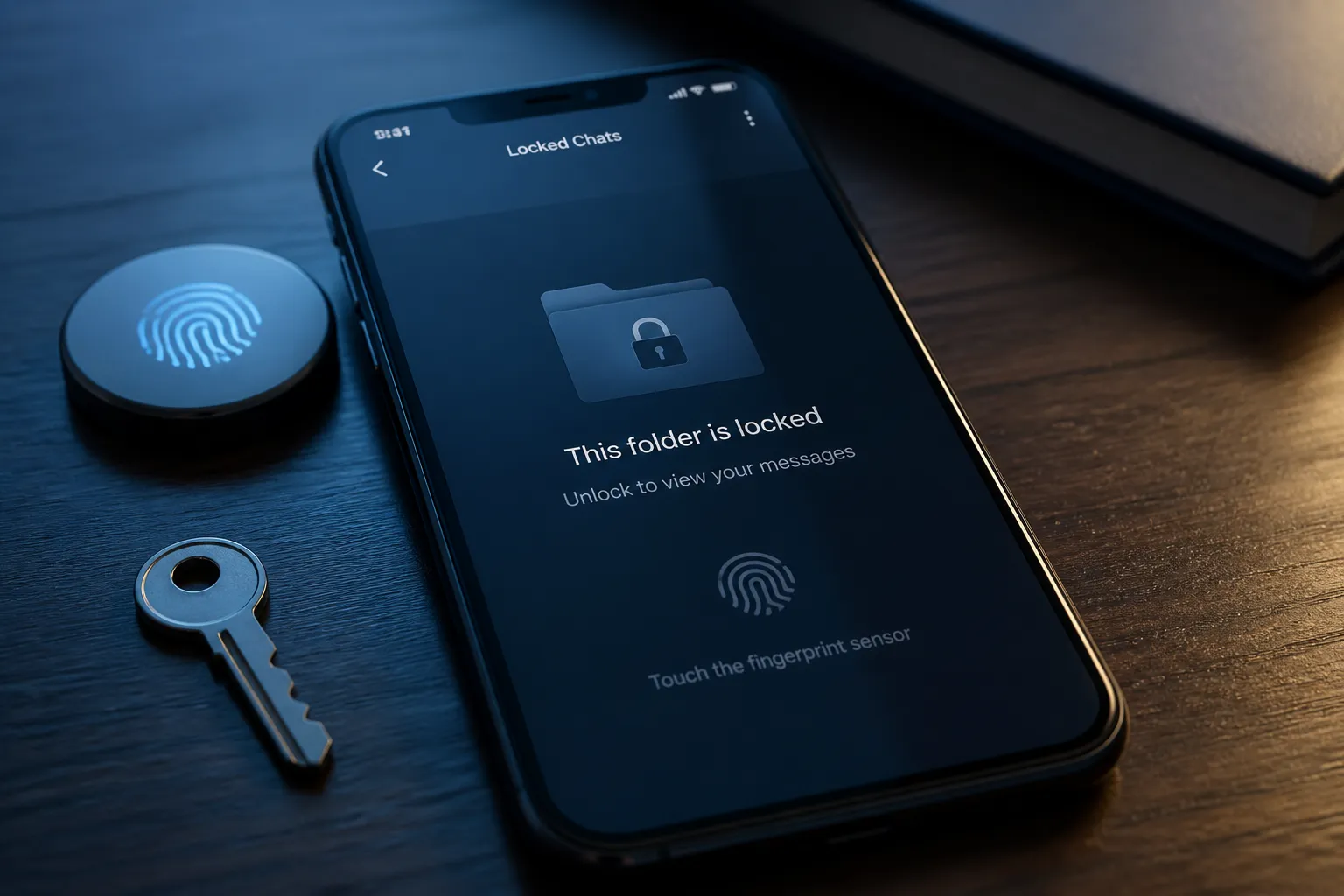
WhatsApp does not offer an official feature called “Secret Chat.” People usually use this phrase to describe Chat Lock, a privacy feature that moves selected conversations into a protected Locked Chats folder. You can open that folder only with your phone’s screen lock, such as a passcode, fingerprint, Face ID, or device pattern.
WhatsApp also offers a Secret Code option. It can hide the Locked Chats folder from your normal chat list. When this option is enabled, the folder does not appear at the top of the Chats tab. You reveal it by typing your chosen code into the WhatsApp search field.
These tools improve privacy on your device, but they do not make a conversation anonymous or completely invisible. The chat still exists in your WhatsApp account, and the other person can still see messages sent to them.
How to Lock a WhatsApp Chat
Before starting, update WhatsApp through the Google Play Store or App Store. Menu names can vary slightly between app versions, Android phones, and iPhones.
On Android
- Open WhatsApp and go to the Chats tab.
- Press and hold the conversation you want to protect.
- Tap the three-dot menu in the top-right corner.
- Select Lock chat.
- Confirm the action with your fingerprint, face recognition, PIN, or phone screen lock.
On some Android versions, you may need to open the conversation first, tap the contact or group name at the top, and then choose Chat lock. This is useful when the long-press menu does not show the lock option.
On iPhone
- Open WhatsApp and find the conversation in the Chats tab.
- Swipe left on the chat or open it and tap the contact or group name.
- Tap Chat lock.
- Turn on the lock and confirm with Face ID, Touch ID, or your iPhone passcode.
Chat Lock can be used for individual chats and, where supported by your WhatsApp version, group conversations. Locking a chat does not delete it, archive it, or remove it from the other participant’s phone.
How to Access Locked Chats
After you lock a conversation, WhatsApp places it in the Locked Chats folder. To open it:
- Open WhatsApp and stay on the Chats screen.
- Slowly pull down on the chat list until Locked Chats appears.
- Tap the folder.
- Authenticate with your fingerprint, Face ID, Touch ID, or device passcode.
Select the conversation after authentication. You can read messages, reply, send media, and use the chat normally. The lock only adds an access barrier to the conversation on your phone.
How to Hide Locked Chats
If you do not want the Locked Chats folder to remain visible, use WhatsApp’s Secret Code feature. This is the closest official option to hiding a WhatsApp secret chat.
- Open the Locked Chats folder.
- Tap the three-dot menu or open Chat lock settings.
- Select Secret Code.
- Create a code that is different from an obvious word such as your name or birthday.
- Turn on Hide locked chats.
Once hidden, the Locked Chats folder will no longer be displayed in the regular chat list. To find it, tap the WhatsApp search bar and type your Secret Code. The hidden folder should appear in the results, after which WhatsApp will request authentication.
Choose a code you can remember. If you forget it, recovering access may require resetting the locked chat settings, and that process can affect access to protected conversations. Avoid storing the code in an unprotected notes app.
How to Hide Chat Notifications
Chat Lock automatically hides the message preview and contact details in notifications for protected conversations. Instead of showing the message text, your phone should display a generic WhatsApp notification.
For stronger privacy, review your phone’s notification settings:
- Android: Open Settings > Notifications > App notifications > WhatsApp. Depending on the phone brand, turn off notification content on the lock screen or select an option such as Hide sensitive content.
- iPhone: Open Settings > Notifications > WhatsApp > Show Previews, then choose When Unlocked or Never.
WhatsApp’s menus and your phone manufacturer’s settings may use different wording. Send yourself a test message after changing the settings and check what appears while the screen is locked.
Android and iPhone Differences
The privacy functions are broadly similar on Android and iPhone, but the authentication method is different. Android commonly uses a fingerprint, face unlock, pattern, or PIN. iPhone normally uses Face ID, Touch ID, or the device passcode.
The gesture for finding Chat Lock can also differ. Android often uses a long press followed by the three-dot menu, while iPhone may use a swipe-left action or the chat information screen. If you cannot find the option, open the chat, tap the person’s or group’s name, and look for Chat lock.
Both platforms require an up-to-date WhatsApp installation for the latest Secret Code features. If the option is missing, update WhatsApp, restart the app, and check the chat information screen again.
Security Limitations and Tips
- Use a strong device lock: Chat Lock depends on your phone’s security. Replace a simple four-digit PIN with a longer passcode where possible.
- Protect notification previews: A locked chat can still expose information if your phone displays full WhatsApp previews on the lock screen.
- Do not use predictable Secret Codes: Avoid dates, names, phone numbers, and commonly used passwords.
- Remember linked devices: Review WhatsApp Settings > Linked Devices and log out of computers or tablets you no longer use.
- Keep WhatsApp updated: Updates may include privacy fixes and changes to Chat Lock menus.
- Understand the limits: Chat Lock does not stop the other person from taking screenshots, forwarding messages, copying text, or photographing the screen with another device.
For most users, the safest setup is Chat Lock combined with a strong phone passcode, hidden notification previews, and a Secret Code for the Locked Chats folder. This keeps private conversations out of casual view without suggesting that WhatsApp provides completely anonymous or trace-free messaging.
Does WhatsApp have an official Secret Chat feature?
No. “Secret Chat” is an informal term for Chat Lock, Locked Chats, and the optional Secret Code feature.
How do I open a locked WhatsApp chat?
Pull down on the Chats screen, tap Locked Chats, and authenticate with your phone lock method.
Can I hide the Locked Chats folder?
Yes. Open Chat lock settings, create a Secret Code, and enable Hide locked chats.
Will Chat Lock hide message notifications?
It hides the message preview and contact details for protected chats, but you should also check your phone’s lock-screen notification settings.
Does Chat Lock prevent screenshots?
No. Chat Lock protects access on your phone but cannot stop another person from taking screenshots or recording the conversation.